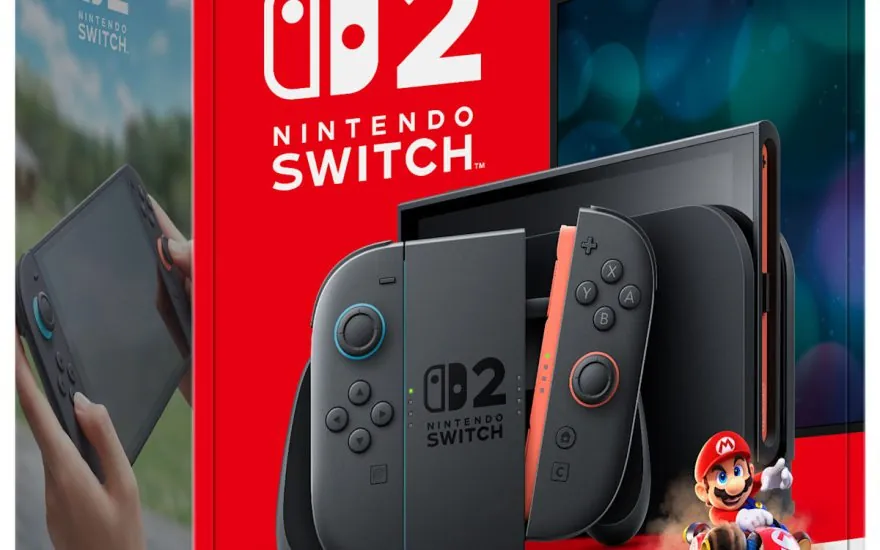

Moving from Nintendo Switch to Nintendo Switch 2 is less about starting over than making sure the handoff happens in the right order. Nintendo’s official System Transfer guide says the process can move purchased digital games, certain save data, linked Nintendo Accounts, parental controls, and other settings to the new console. Your games will then redownload to Nintendo Switch 2.
That sounds straightforward, but a transfer is not a universal copy of every file on the old system. You still need to check game compatibility, understand which games need a Nintendo Switch 2 Edition upgrade, and make a short list of settings that need to be rebuilt. Here is the practical order to follow before you wipe, sell, or pack away the old console.
Before you start the transfer
Charge both systems and connect them to a reliable internet connection. Nintendo says the source Nintendo Switch must have at least one user profile linked to a Nintendo Account, and an active internet connection is required to perform the System Transfer. Keep both consoles available until the process is finished and the new system has had time to redownload your digital library.
You should also update both consoles before beginning. This is ordinary preparation, but it matters when the new hardware is still receiving compatibility and feature updates. If you use a microSD card in the old Switch, do not treat it as the transfer itself. The account and software handoff is managed through the console’s System Transfer flow, while the new system uses its own storage and compatible microSD Express setup.
What moves to Nintendo Switch 2
The useful part of the transfer is broader than a simple save backup. Nintendo lists purchased digital games, save data, linked Nintendo Accounts, parental controls, and other system settings among the content that can move to Nintendo Switch 2. Once the transfer is complete, digital games are automatically queued to redownload.
- Digital games: Your purchases follow the linked Nintendo Account and redownload on the new console. The download time depends on your connection and the size of each game.
- Save data: Save data can transfer for supported games, so check anything important before you begin. A transfer is not a reason to assume every title behaves identically.
- Profiles and account links: Linked Nintendo Accounts move with the transfer, which is why the source console needs at least one linked profile.
- Parental controls and system settings: Nintendo says these can transfer as-is. Review them on the new console anyway, especially if more than one player uses the system.
GameChat is the clear exception to the settings rule. Nintendo specifically says GameChat settings need to be adjusted after the transfer. That includes the service’s own setup and approval choices, so do not wait until the first multiplayer session to discover that the feature needs attention.
Check every game before you redownload it
Nintendo Switch 2 plays Nintendo Switch 2 games and compatible physical and digital Nintendo Switch games, but Nintendo warns that some older games may not be supported or fully compatible. The official compatibility list is the best place to check a game that matters to you, particularly one that uses unusual accessories, local multiplayer hardware, or a feature tied to the original Joy-Con.
There are three different upgrade situations to keep separate:
- Compatible Nintendo Switch game: The original game can run on Nintendo Switch 2, subject to the compatibility notes.
- Nintendo Switch 2 Edition: Select games offer a paid upgrade pack. Nintendo describes these upgrades as potentially adding improved image quality, smoother frame rates, and extra features or modes, but the package differs by game.
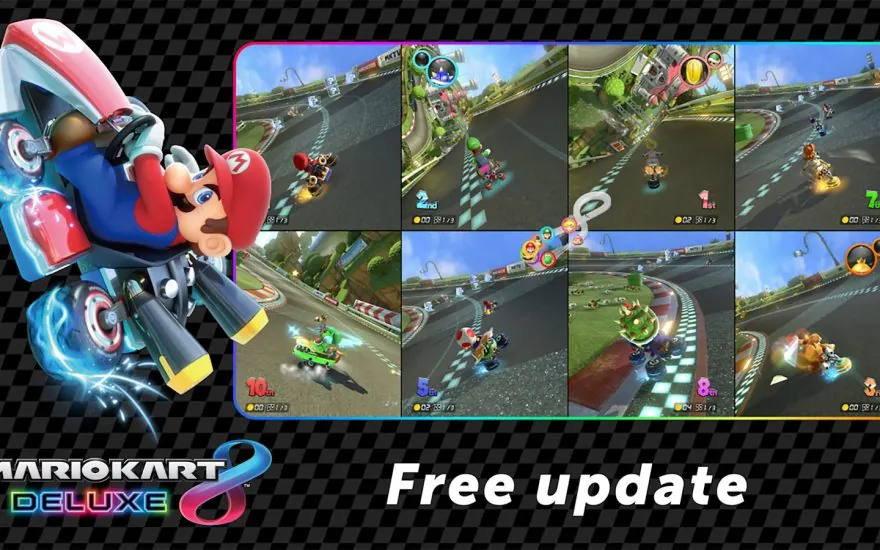
- Free update: Some Nintendo Switch games receive updates that improve performance or add support for features such as GameShare. Connect the new system to the internet and check the game’s update status before assuming the original version includes those features.
This distinction is useful when budgeting for the move. A game appearing in your library does not automatically mean you have the enhanced Nintendo Switch 2 Edition. The original purchase, a paid upgrade pack, and a free compatibility update are separate things.
Controllers and GameChat after the move
You can continue using compatible Nintendo Switch controllers, including Joy-Con and the Nintendo Switch Pro Controller, with Nintendo Switch 2. Nintendo notes that controllers without features required by a particular game cannot replace Joy-Con 2 for those features. It also says the HOME Button on an original Nintendo Switch controller cannot wake Nintendo Switch 2 from sleep.
For GameChat, the right Joy-Con 2’s C Button starts the feature once it is set up. If you use an older controller without a C Button, Nintendo says you can start GameChat from the HOME Menu instead. The console has a built-in microphone, while video chat requires a compatible USB-C camera sold separately. The camera is optional for voice chat, not a hidden requirement for the transfer.
A short post-transfer checklist
After the new console finishes its first setup, work through this list before you call the move complete:
- Open the software library and confirm that the digital games you expect are redownloading.
- Launch the games with important saves and verify that the correct user profile is selected.
- Check the official compatibility notes for titles that use accessories or local multiplayer features.
- Install available free updates and decide whether any Nintendo Switch 2 Edition upgrade is worth buying.
- Reconfigure GameChat, including friend approvals and any parental-control permissions.
- Pair or connect the controllers you plan to use, then test wake, charging, and multiplayer behavior.
- Only after those checks should you reset, sell, or permanently store the original Nintendo Switch.
The transfer is designed to make Nintendo Switch 2 feel familiar quickly, but the details still reward a careful first evening. For the hardware trade-offs behind the move, read our Nintendo Switch 2 versus Steam Deck comparison. If you are planning purchases around the next few months, the PixelTempo game release calendar tracks verified PC, Steam Deck, and Switch 2 dates from official sources.